


Cast To TV - Screen Mirroring
3.713.00 Reviews
App Specs
- Version
- 1.1
- Updated On
- License
- Free
- Downloads
- 500,000+
- Developer
- Cast TV Apps
- Categories
- Video Players & Editors
- Platform
- Android
Screenshots
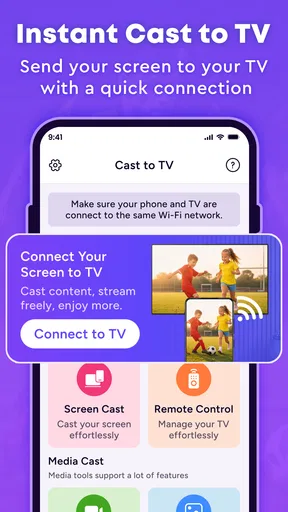
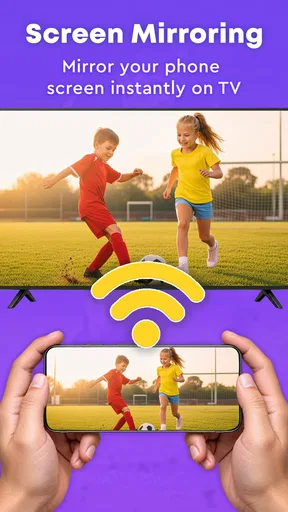
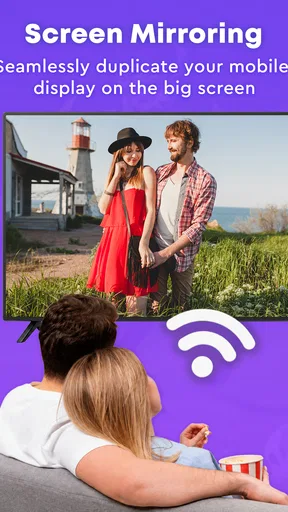
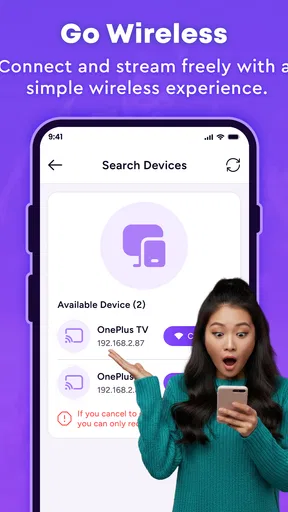
 Analysis by AppCompare
When I want to show something from my phone on a larger screen, I care less about a long list of tools than about whether the connection is straightforward and the result is comfortable to watch. Cast To TV - Screen Mirroring is aimed at that simple job: sharing a phone screen with a television. It is a free video-player and editing app from Cast TV Apps, and its appeal is the directness of that purpose rather than a promise to replace a full streaming setup.
First, make sure the room is ready
I would start by checking the television, not by assuming that installing a casting app makes any TV ready to receive a phone screen. Casting depends on the phone and display being able to establish a compatible connection. Before planning a family slideshow or a work demo around it, I would check that the TV’s casting or screen-sharing option is available. That simple bit of preparation helps avoid discovering a compatibility problem while everyone is waiting.
A useful first test is to choose something unimportant, such as a photo you would not mind showing, and try the connection before the real occasion. That gives you a chance to learn how the TV signals that it is ready and whether you can comfortably navigate the phone while the display is mirrored. I would also keep the phone close enough to use as the controller without standing in front of the screen or passing it around unnecessarily.
From phone in hand to a shared screen
I find the most useful way to judge a screen-sharing app is to follow the whole trip from the phone to the room’s display, rather than focus only on the moment a picture appears. Here, the key decisions begin before opening the app: what I want to show, whether the TV can receive the connection, and who will keep the phone in hand. Thinking through those steps makes the handoff—and its possible snags—much easier to assess.
Start with the room, not the app
The first practical question is whether the TV and phone are ready to work together. Screen casting depends on the display and the phone being able to establish a compatible connection; installing an app cannot make every television behave like a casting receiver. I would check that the TV’s casting or screen-sharing option is available before relying on this for a planned presentation or movie night. That small check avoids the most frustrating outcome: opening a casting app only to discover the screen itself is not prepared to receive anything.
That is where this app makes sense for everyday use. Its purpose is to get a phone’s display onto a TV, so the workflow is easier to understand than one built around a large library of media controls. I would reach for it when I want to show a group a photo, browse something together, or put phone content on a bigger display without passing the handset around. It is a particularly natural fit for casual sharing, where a quick handoff matters more than elaborate playback settings.
Make the connection before everyone is waiting
My practical advice is to connect before the audience is settled. Open the app, prepare the television to receive a cast, and confirm that the phone’s screen appears before you start explaining a photo album or a set of slides. This is a useful habit with any screen-mirroring tool, but especially here: the core value is the connection itself, so a short test tells you whether the whole plan is viable.
Worth Reading Before You Choose

Baby Panda World Brings Quick Play to Modern Phones, but Its Game Library Feels Busy

ESPN’s Live Game View Makes Following Close Games Easier

QuizzLand Review: A Good Fit for Short Trivia Breaks, Not Every Player

Basketball Stars: Multiplayer Is Fast, but Can It Recover When Matches Go Wrong?

WEBTOON Turns Phone Updates Into a Better Reading Routine

Link to Windows Runs on Shared Habits, Not Social Feeds
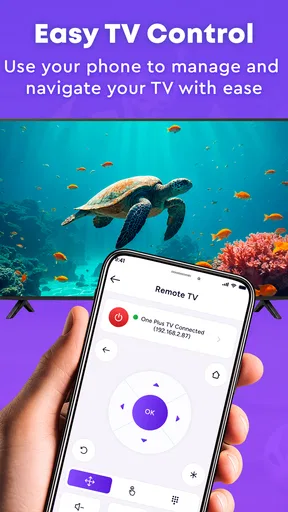
Once the display is mirrored, the phone becomes the control surface. That is convenient if I already know where the content is and can move through it naturally. It is less ideal if I need to keep using the phone privately while the TV shows something else. Mirroring shares what is on the handset, so the person holding it should think about notifications, app switching, and anything else that might unexpectedly appear on the larger screen. I would silence interruptions and open the intended content first when showing something in a shared space.
Handing the viewing experience to the TV
The handoff is the important part: the television becomes the place everyone watches, while the phone remains in the user’s hands. For a family photo session, for example, I could bring up the album on the phone and let relatives see it together instead of crowding around a small display. For a work discussion, I could show a page or visual reference without asking each person to lean in. These are modest tasks, but they are exactly the sort of situations where mirroring can be more useful than sending a file to everyone individually.
There is a trade-off in that arrangement. The content on the TV follows the phone’s screen, so navigating away may change what everyone sees. I would prepare the sequence in advance and avoid unnecessary app hopping during a demonstration. If I need a clean presentation with independent controls, a dedicated presentation tool or a laptop connected directly to the display may be a better choice. The app is more compelling when the phone itself is the content source and the group simply needs to see it.
What the result feels like
At its best, the payoff is practical: a small personal screen becomes a shared one, and people can follow along without gathering around the handset. The app’s over 500,000 installs suggest that this kind of simple casting has an audience, while its average rating of 3.6 from around 390 ratings points to a more mixed experience than a universally dependable utility. I read that as a reason to keep expectations sensible and test the connection in the setting where I intend to use it.
The app is currently version 1.1 and is rated for Everyone. It is free, which makes it easy to try for an occasional need rather than committing to a paid setup. It requires Android 8.0 or later, so an older phone may not be suitable. Those details matter more than they might for a casual download: if the device is too old, or the TV cannot receive a compatible cast, the intended workflow stops before the app can help.
Where this approach is less comfortable
Screen mirroring is not the same as sending a video directly to a TV. With mirroring, the phone stays involved throughout the viewing session, and the display reflects what the handset is showing. That can be handy for browsing or sharing varied content, but it is not always the smoothest choice for watching a long video. A TV’s built-in streaming apps, or a dedicated media player, may provide a more independent experience and let the phone do something else.
There is also a social friction that is easy to overlook: the person holding the phone remains responsible for what appears on the television. If someone wants to pass control around, scroll freely, or search for content while others watch, the session can become stop-start. I would use this app for short, intentional sharing rather than treating it as a hands-free living-room setup. For a polished presentation or a group that needs to control playback independently, another method may be more appropriate.
Choosing it over familiar alternatives
Compared with a TV’s own streaming apps, this app is useful when the item you want to show is already on the phone or is easier to navigate there. Compared with a cable connection, it avoids making a physical connection the center of the setup, though a cable can be the more predictable option when a stable presentation matters. And compared with sending a file to a TV-specific app, mirroring can be more flexible for casual browsing, but less tidy when you want the television to play something independently.
That distinction helps me decide when to use it. If I am sharing a few photos or walking someone through what I see on my phone, mirroring is a sensible route. If I am settling in for a long film, I would rather use a streaming app on the TV when available. If I need reliability for a meeting, I would test the whole chain ahead of time and keep a cable or another presentation option as a backup.
A living-room workflow that suits it
Imagine a relative asks to see a set of holiday pictures while everyone is gathered in the living room. I would get the TV ready and connect before passing the phone to anyone, then open the album and move through it at a pace the group can follow. That keeps the photos visible to everyone and avoids crowding around the handset. The less obvious benefit is that the phone can remain with the person who knows the album, rather than needing to teach the whole group how to navigate a separate TV interface.
For a quick how-to or a shopping comparison, the same phone-led approach can make the app useful in a different way: I can move between the material I want to show without preparing a formal presentation. But I would avoid entering passwords or opening private messages while mirrored. A notification can shift attention away from the content, and switching apps can expose something unrelated. Preparing the relevant page or album before connecting makes the sharing session cleaner and reduces awkward interruptions.
Who will appreciate it, and who should pass
I would recommend Cast To TV to someone who wants a straightforward way to put phone content on a television and is comfortable using the phone as the controller. It fits spontaneous household sharing and small demonstrations better than complex media management. The developer, Cast TV Apps, has kept the product’s stated purpose focused on connecting a phone and TV, which makes it easy to understand what kind of problem it is meant to solve.
I would skip it if I need a guaranteed connection across an unknown collection of televisions, a separate playback interface, or a presentation that cannot be interrupted by phone activity. I would also choose another solution if the TV already has a better built-in way to play the content I want. Its review count is modest compared with its broader rating count, so I would not treat the overall score as a promise that every device combination will behave the same way.
What to check when the handoff stalls
If the TV does not show the phone, I would first return to the basic setup rather than repeatedly tapping through the app: confirm that the television is in a receiving or screen-sharing mode and that the phone is using a compatible route to reach it. Then I would try a low-stakes connection again before the audience is involved. This is not a guarantee that every pairing will work, but it helps separate a room-setup issue from a problem with the content or the way I am navigating.
If the connection works but the session feels awkward, the issue may be the task rather than the setup. Constantly switching between private phone use and shared viewing makes mirroring less comfortable because the television tracks the handset. For a short visual walkthrough, that relationship is useful; for a long program that should keep playing while the phone is free, a TV app or a more independent player is the better fit. I would choose based on who needs control, not just on which option seems quickest to start.
A sensible way to try it
My preferred test is low-stakes: connect at home, show a photo or a short piece of content, and see whether the TV and phone work comfortably together. If the handoff feels easy, it can become a handy option for sharing things in the moment. If it takes too much setup or the screen does not stay useful while the phone is in use, a built-in TV feature or direct connection is likely the better fit.
Overall, Cast To TV is best viewed as a focused screen-sharing option, not a universal answer for every kind of television viewing. I like the simple use case and the fact that it is free to try, but the real value depends on the devices in the room and the kind of content being shared. For quick, phone-led moments, it is worth considering; for long-form viewing or high-stakes presentations, I would choose a more independent and predictable setup.
Pros
- Works with many smart TVs and streaming devices.
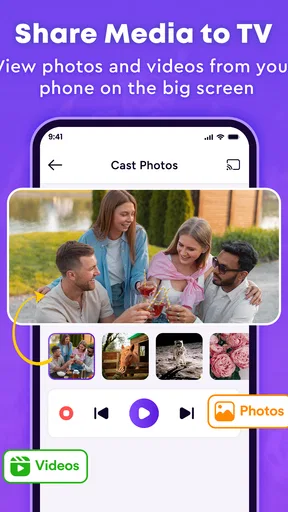
- Lets you mirror photos and videos on a larger screen.
- Useful for sharing presentations and other content.
- Simple controls make casting easy to start.
- Can reduce the need to pass a phone around when viewing together.
Cons
- Device compatibility can vary by TV and phone model.
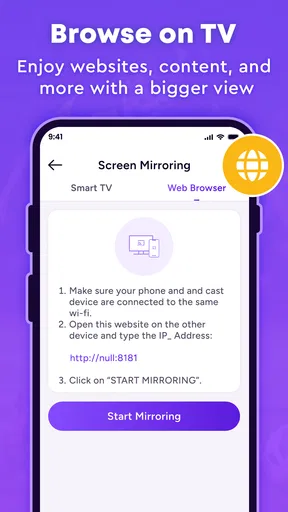
- Both devices may need to be on the same Wi-Fi network.
- Mirroring can introduce lag
- especially with games.
- Some features may require a paid upgrade.
- Casting quality depends on your network connection.
FAQs for Cast To TV - Screen Mirroring
What does Cast To TV - Screen Mirroring do?
Cast To TV - Screen Mirroring is designed to send supported content from your phone or tablet to a compatible television or streaming device. Depending on your device, connection, and the app’s available features, you may be able to mirror your screen or cast photos, videos, and other media. Exact options can vary by phone model and TV, so check compatibility before downloading.
Which TVs and devices can I use with Cast To TV - Screen Mirroring?
Compatibility depends on the app version and the receiving device. The TV or streaming device generally needs to support a casting or screen-mirroring standard that the app can detect, and both devices usually need to be connected to the same Wi-Fi network. Some televisions require casting to be enabled in their settings. Check the app’s store listing and your TV’s documentation for supported models and connection requirements.
How do I connect my phone to the TV?
Start by connecting your phone and TV or streaming device to the same Wi-Fi network, then open Cast To TV - Screen Mirroring and look for an available-device or connection option. Select your television and follow any prompts shown on either screen. If the TV does not appear, confirm that casting is enabled, restart the app, and check that your network does not isolate connected devices.
Why might screen mirroring be delayed, choppy, or fail to connect?
Mirroring quality depends on Wi-Fi strength, network congestion, device performance, and the capabilities of both the phone and TV. A weak or busy connection can cause lag, interruptions, or lower picture quality. Try moving closer to the router, closing bandwidth-heavy apps, and reconnecting both devices. Some protected video services may also restrict mirroring, even when other content casts successfully.
Is Cast To TV - Screen Mirroring free, and what permissions or privacy considerations should I know about?
Check the current app-store listing for pricing, subscriptions, advertising, and any in-app purchases, as these details can change between versions or regions. The app may request permissions needed for features such as finding nearby devices or accessing media you choose to cast. Review the permission prompts and the developer’s privacy information, and grant only access you are comfortable providing.


